

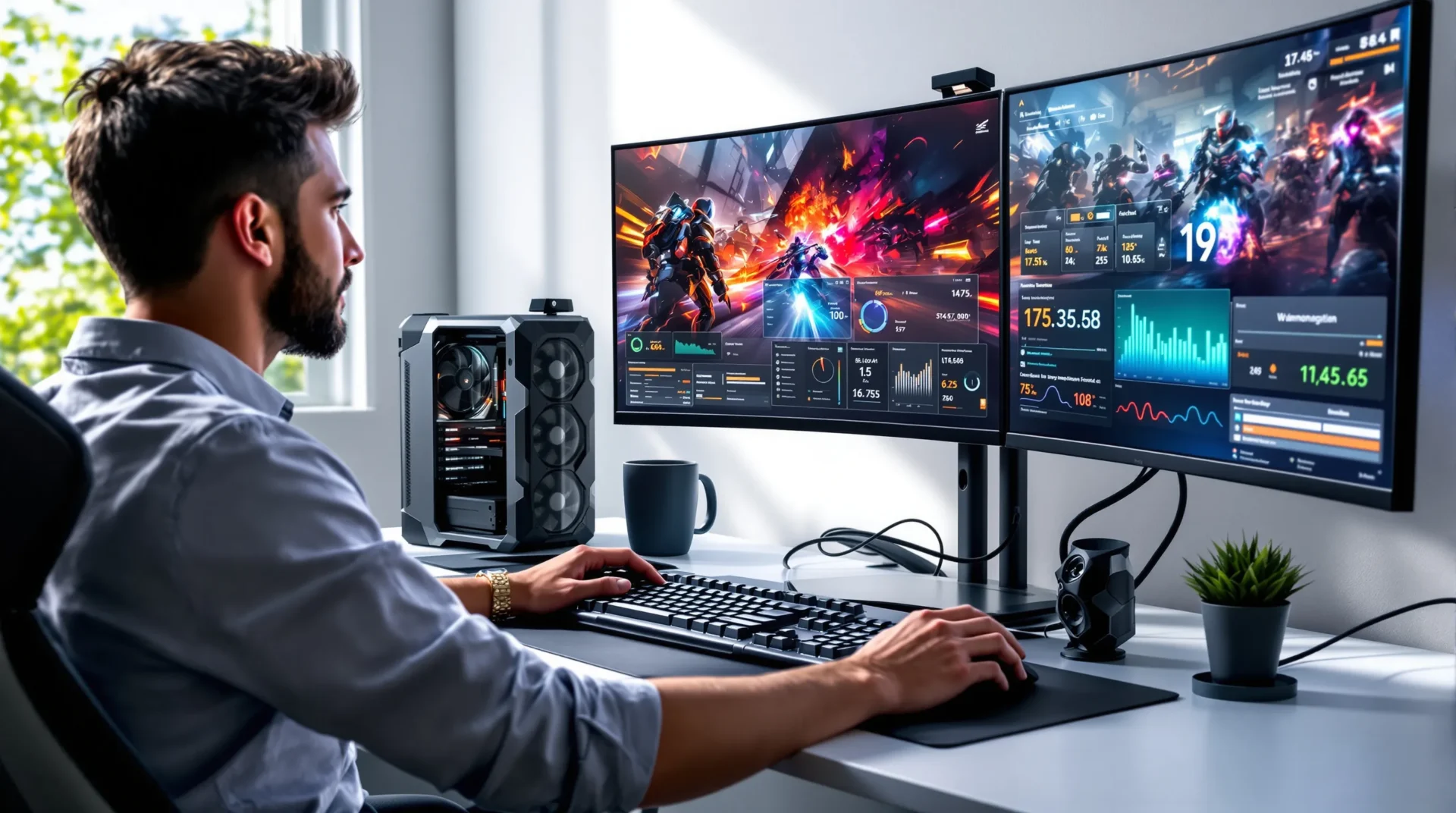
Picture this: You’re deep into a marathon gaming session, your hands sweating, your heart pounding, and your PC fans spinning like they’re about to take off. Suddenly, your game stutters. You check your CPU temps, and your stomach drops. If you’ve ever worried about safe CPU temps while gaming, you’re not alone. The stakes are real—push your processor too hard, and you risk crashes, lag, or even permanent damage. But keep your cool (literally), and you’ll enjoy smooth, peak performance for years.
Why Safe CPU Temps While Gaming Matter
Let’s get real: CPUs hate heat. When your processor gets too hot, it slows down to protect itself. That means lower frame rates, random shutdowns, and a gaming experience that feels more like a slideshow. Worse, running hot for too long can shorten your CPU’s life. If you care about your hardware—and your high scores—safe CPU temps while gaming should be on your radar.


What Are Safe CPU Temps While Gaming?
Here’s the part nobody tells you: “Safe” isn’t one-size-fits-all. Different CPUs have different limits. But most modern gaming CPUs—think Intel Core i5/i7/i9 or AMD Ryzen 5/7/9—should stay between 60°C and 80°C during intense gaming. Some chips can handle up to 90°C, but that’s flirting with danger. If you see temps above 85°C, it’s time to take action.
- Idle (not gaming): 30°C–50°C
- Normal gaming: 60°C–80°C
- High but still safe: 80°C–85°C
- Danger zone: 85°C+
Manufacturers like Intel and AMD list “TJunction” or “Max Temp” in their specs. For most, that’s around 100°C, but you never want to get close. Think of it like driving: Just because your car’s speedometer goes to 160 mph doesn’t mean you should.
How to Check Your CPU Temps While Gaming
If you’ve never checked your CPU temps while gaming, you’re missing out on crucial info. Here’s how:
- Download a free tool like HWMonitor, Core Temp, or MSI Afterburner.
- Open the program before you start gaming.
- Play your favorite game for 30 minutes.
- Alt-tab out and check the “Max” temperature reading.
Pro tip: Some tools let you overlay temps on your screen, so you can keep an eye on things without leaving the action.
What Happens If Your CPU Gets Too Hot?
Let’s break it down. When your CPU gets too hot, it’ll throttle—meaning it slows itself down to cool off. You’ll notice lower frame rates, stuttering, or even sudden shutdowns. If you ignore these warning signs, you risk permanent damage. I once ignored a noisy fan, thinking it was no big deal. Two weeks later, my PC wouldn’t boot. Turns out, my CPU had cooked itself. Lesson learned: Don’t ignore high temps.
What Causes High CPU Temps While Gaming?
Safe CPU temps while gaming depend on a few key factors:
- Poor airflow: Dusty or cramped cases trap heat.
- Old thermal paste: Over time, it dries out and loses effectiveness.
- Weak coolers: Stock coolers often struggle with demanding games.
- Overclocking: Pushing your CPU past its limits means more heat.
- High ambient temps: Hot rooms make it harder for your PC to cool down.
If you’ve ever gamed in summer without AC, you know the struggle. My own rig once hit 90°C during a July heatwave—until I realized my case fans were clogged with dust bunnies the size of small animals.
How to Keep Your CPU Temps Safe While Gaming
Here’s where you take control. Keeping safe CPU temps while gaming isn’t rocket science, but it does take a little effort. Try these tips:
1. Clean Your PC Regularly
Dust is the enemy. Every few months, power down your PC, open the case, and use compressed air to blow out fans, heatsinks, and vents. You’ll be amazed at how much cooler your system runs.
2. Upgrade Your Cooling
If you’re using the stock cooler, consider an upgrade. Aftermarket air coolers or all-in-one liquid coolers can drop temps by 10°C or more. I swapped my stock cooler for a budget tower cooler and saw my gaming temps fall from 85°C to 70°C overnight.
3. Improve Case Airflow
Make sure your case has enough intake and exhaust fans. Arrange cables neatly to avoid blocking airflow. If your case feels hot to the touch, it’s time to rethink your fan setup.
4. Replace Thermal Paste
Thermal paste transfers heat from your CPU to the cooler. If it’s old or poorly applied, your temps will spike. Reapplying fresh paste every couple of years can make a big difference.
5. Watch Your Overclock
Overclocking is fun, but it’s a heat magnet. If you’re pushing your CPU, keep a close eye on temps. Dial back your overclock if you see temps creeping past 80°C.
6. Control Your Room Temperature
Sometimes, the problem isn’t your PC—it’s your room. If possible, game in a cool, well-ventilated space. Even a small desk fan can help move hot air away from your setup.
Who Needs to Worry About Safe CPU Temps While Gaming?
If you’re a casual gamer who plays for an hour or two on weekends, you might never see dangerous temps. But if you:
- Game for hours at a time
- Play demanding titles like Cyberpunk 2077 or Starfield
- Overclock your CPU
- Live in a hot climate
—then you need to keep an eye on safe CPU temps while gaming. Hardcore gamers, streamers, and anyone who wants their PC to last should make this a habit. If you’re running a tiny, silent case with no airflow, this advice is for you. If you’re on a water-cooled, open-air test bench, you can probably relax (but still check your temps now and then).
What If Your CPU Temps Are Too High?
Don’t panic. Here’s what to do next:
- Shut down your game and let your PC cool off.
- Check for dust and clean your fans.
- Make sure all fans are spinning and not blocked.
- Consider reapplying thermal paste or upgrading your cooler.
- Lower your overclock or reset to default settings.
- Move your PC to a cooler spot if possible.
If you try all this and still see high temps, your CPU cooler might be failing, or your case might need more fans. Sometimes, it’s just time for an upgrade.
Final Thoughts: Keep Your Cool for Peak Performance
Safe CPU temps while gaming aren’t just about numbers—they’re about peace of mind. When you know your system is running cool, you can focus on the game, not the hardware. I’ve made every mistake in the book, from ignoring dust to overclocking without checking temps. Trust me, it’s easier to prevent problems than to fix a fried CPU. So grab a can of air, check your temps, and keep your cool. Your games—and your wallet—will thank you.