
If you’ve been gaming on Nintendo Switch long enough, you’ve probably hit the storage wall. Whether you’re running the standard 32GB model or upgraded to a 1TB microSD card, managing your digital library becomes a real problem fast. Archive data is the Switch’s unsung feature, most players have no idea it exists or how it works, yet it’s the backbone of maintaining a healthy console. This guide breaks down what archive data actually is, why it matters for your gaming habits, and how to use it effectively to keep your library organized without losing your saves. By the end, you’ll understand the difference between archiving and deleting, how to protect your game progress, and why cloud backup should be part of your routine. Let’s immerse.


Key Takeaways
- Nintendo Switch archive data removes game files while preserving save data and ownership records, freeing up storage space without losing any progress.
- Archiving differs critically from deletion: archived games stay in your purchased library and can be reinstalled for free, while deleted games remove everything including saves.
- Enable Nintendo Switch Online cloud saves immediately to automatically back up progress—without this backup, archived save data exists only on your console and risks permanent loss if the system fails.
- A microSD card of 512GB or larger is essential for digital Switch libraries; combined with strategic archiving of inactive games, you can maintain 50+ titles without storage headaches.
- Archive games you haven’t played in three months and keep only your current rotation installed, reviewing your library quarterly to maintain organization and maximize available storage.
- Cloud backup protection works per account, so verify your Nintendo Switch Online subscription status and confirm which games support cloud saves to ensure your data is protected long-term.
What Is Nintendo Switch Archive Data?
Nintendo Switch archive data is a storage feature that removes a game’s files from your console while preserving your save data and other game metadata. When you archive a game, the game itself disappears from your installed games list, freeing up storage space. Your progress, achievements, and all tied-to-account data stays intact on the console, it just won’t show up in your library until you reinstall it.
Think of archiving as putting a game in a storage box in your closet. The box (your account data) stays with you, but the physical game (the playable files) gets packed away. You can pull it back whenever you want to play again, usually within minutes depending on your internet speed. On the Switch, this feature is built directly into the system, making it far more convenient than manually deleting and redownloading games.
Archive data works across all Switch models, original Switch, Switch Lite, and Switch OLED. It applies equally to physical cartridges and digital downloads, though you’ll only see storage freed up with digital games. Physical cartridges don’t take up console storage, so archiving them does nothing for your drive space.
Why Archive Data Matters for Switch Gamers
Archive data solves three critical problems that every digital Switch owner faces: save protection, storage limits, and library management. Understanding why you should care about archiving separates casual players from people who actually know their console.
Protecting Your Game Progress and Saves
Your save files don’t live on your cartridge or in the game files themselves, they’re stored separately on your Switch’s internal memory or linked to your Nintendo Account. Archiving a game removes the game files while leaving saves completely untouched. This is your safety net if a download gets corrupted or you need to free space urgently. You can archive a game, reinstall it later, and everything you accomplished stays with you.
When you archive, your game progress remains accessible if you use cloud saves through Nintendo Switch Online. Even if something happens to your console, your data syncs back when you reinstall. This is especially important for single-player story games where 50+ hours of progress matters.
Managing Storage Space Efficiently
The Switch’s storage situation is brutal. The base model has 32GB, which sounds fine until you realize about 5.5GB is reserved for the system, leaving 26.5GB for actual games. A single AAA title like The Legend of Zelda: Tears of the Kingdom takes up about 16GB. Download three major games and you’re full. Even with a microSD card, most players hit their limit eventually.
Archiving lets you keep 50+ games on your system without taking up gig after gig. Your entire library stays accessible in your profile, you just can’t play archived titles until you reinstall them. It’s the difference between having 20GB available for a new game or having to delete something permanently.
Preserving Digital Game Libraries
Digital games aren’t yours the way physical cartridges are. If Nintendo shuts down the eShop in the future (which the Wii U eShop proves is possible), your ability to redownload games could vanish. By keeping games archived on your account, at least your ownership records persist. If you ever want to revisit a title from your backlog, archive data ensures you can do it as long as your account exists.
Archiving also helps with library organization. Instead of scrolling through a bloated games list with 100+ titles, you can keep only your current rotation installed and archive the rest. It’s cleaner, faster to navigate, and keeps your actual playtime focused.
How to Archive Data on Nintendo Switch
Archiving on Switch is straightforward once you know where to look. The process takes seconds and never risks your saves, but the interface is buried deep enough that many players miss it entirely.
Step-by-Step Archive Process
- Open System Settings from your Switch home screen (press the gear icon in the top-right).
- Navigate to Data Management → Manage Software.
- Select the game you want to archive from your installed software list.
- Choose Archive Software from the menu options.
- Confirm the action by selecting “Archive” when prompted.
That’s it. The game disappears from your active library within seconds and the storage instantly frees up. Your save data stays on your console and tied to your account. If you have Nintendo Switch Online with cloud saves enabled, your progress also backs up automatically.
One key detail: you can’t archive games while you’re playing them. Close the game first, then head to Data Management. Also, if a game is actively downloading or installing, wait for that to finish before attempting to archive.
Archiving Specific Games vs. Bulk Operations
If you’re only archiving one or two games, the step-by-step method above works perfectly. But if you’re managing 30+ digital titles and need to clear serious space, doing this one game at a time gets tedious.
Unfortunately, the Switch doesn’t have a bulk archive feature in its current firmware (as of March 2026). You can’t select multiple games and archive them in one go. Each title requires its own trip through the menu. It’s annoying, but the time investment is worth it if you’re cleaning up a cluttered library.
A workaround: prioritize based on what you actually play. Archive your backlog of games you haven’t touched in months, keep only your rotation installed. Most players find they only actively play 5-10 games at any given time, so archiving everything else buys you breathing room.
One pro tip: before archiving anything permanently, check when you last played it. Your play history is visible in your profile. Games you haven’t touched in a year are prime candidates for archiving without regret.
Understanding Archive vs. Delete: Key Differences
This is the critical distinction that determines whether you’re making a smart storage decision or accidentally destroying your game library. Many players confuse archiving with deletion, and it costs them.
What Happens When You Archive a Game
Archiving removes the game files (the actual playable program) from your Switch while keeping everything attached to your account intact. Your saves, your ownership record, your game settings, all of it stays. The game becomes invisible in your library, but you still own it digitally. You can reinstall it anytime by going to the eShop and downloading it again for free.
Archived games show up in your eShop “Purchased” section. They’re grayed out or marked differently, but they’re still there, proving you own them. Reinstalling is usually faster than the original download because Nintendo’s servers recognize you’ve had the game before and can optimize the transfer.
Your save data persists separately, independent of the game files themselves. So even if the game is archived for months, your 40-hour save in Persona 5 Royal or your creature collection in Pokémon Scarlet stays on your system. The moment you reinstall, your progress loads immediately.
How to Recover Archived Games
Recovering an archived game takes three clicks: open the eShop, find the game in your purchased list, download it again. The system remembers you own it, so there’s no repurchase required. Downloads typically complete in 10-30 minutes depending on file size and internet speed, though large AAA titles might take an hour.
If you don’t remember which games you archived, go to System Settings → Data Management → Manage Software and look at the bottom of the list. Archived titles appear in a separate section labeled “Software awaiting redownload” or similar. Nintendo also maintains your purchase history in your eShop account, so you can browse everything you’ve ever owned.
One important thing: if you delete a game instead of archiving it, recovery gets complicated. Deletion removes everything, the game files, the save data, all of it. You can only recover from a deletion if you have a backup of your user data or if you restore from a system backup (which requires planning ahead). Archiving leaves no such danger. Always archive, never delete, unless you’re completely certain you’ll never want to play that game again.
Storage Management Tips for Switch Users
Managing Switch storage is an ongoing process, not a one-time fix. Here’s how to structure your system so you rarely hit that “storage full” error again.
Optimal Storage Solutions and MicroSD Cards
The original Switch’s 32GB is a starting point, not a destination. If you plan to own more than 3-4 digital games, a microSD card is mandatory. The Switch supports microSD, microSDHC, and microSDXC cards up to 2TB (yes, 2TB, though anything above 1TB is overkill for most players).
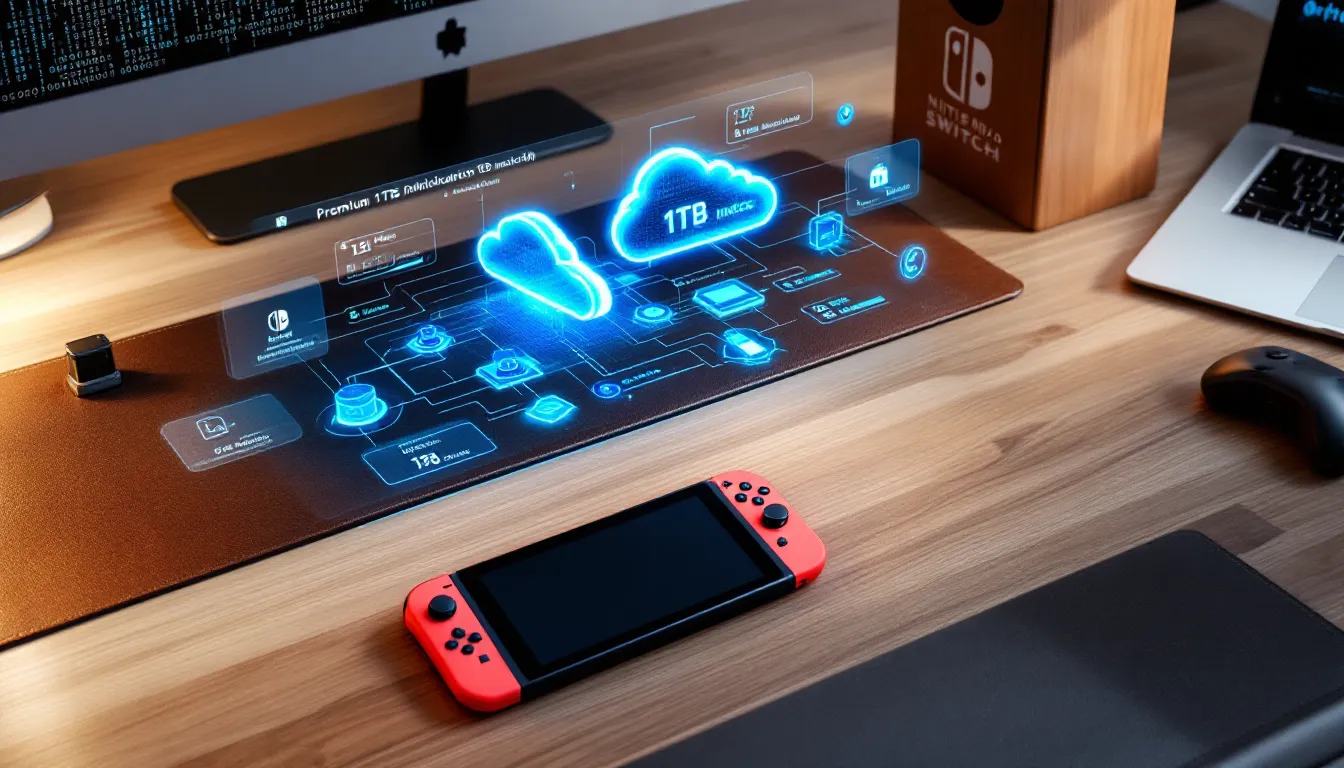
For most gamers, a 512GB microSD card hits the sweet spot: enough room for 50+ AAA titles, affordable (usually $30-50), and formatted instantly by the Switch. If you’re downloading every new release and keeping everything installed, jump to 1TB. You’ll never run out of space, and the cost per game is minimal.
Formatting is automatic when you insert the card. The Switch handles the entire setup. Just buy a quality brand, SanDisk, Samsung, Kingston, or Crucial. Cheap no-name cards sometimes fail or corrupt data, and recovering from that is annoying.
One quirk: the Switch reads microSD cards slower than its internal storage. Game loading times are negligible (you won’t notice), but system menus lag slightly if the card is full or low-quality. Keeping 10-15% free space on your card prevents this.
Deciding What to Archive and What to Keep Installed
Your installation strategy depends on your play habits. Are you a completionist chasing achievements in everything? Or do you rotate through 5-10 games heavily while dabbling in others occasionally?
For rotation players: Keep only your current stack installed. Archive last month’s obsession, reinstall something new when you get bored. This keeps your library clean and ensures you always have space for surprise releases or last-minute multiplayer titles.
For completionists: Archive games you’ve finished or aren’t actively pursuing. Keep ongoing games (ones where you still have objectives) and multiplayer titles (which you jump into spontaneously) installed. Archive your entire backlog. The games themselves take up space: your save data doesn’t.
Practical rule: If a game hasn’t been opened in 3 months, archive it. You likely won’t miss it. If you do, reinstalling takes less time than the guilt of storage anxiety. For reference, most modern Switch titles are 5-20GB when installed, so archiving even three games buys you 15-60GB of freedom.
Also consider what’s on sale or getting seasonal updates. Splatoon 3, Animal Crossing: New Horizons, and online multiplayer games benefit from being installed because you load them frequently. Single-player story games you’ve finished? Archive them. The math is simple: active games stay, dormant games go.
One more tip: before archiving, check your game’s update status. Updates are factored into your storage total, so archiving a game with a large update (like Pokémon Scarlet’s 8GB post-launch patch) frees up significant space.
Cloud Backup and Save Data Protection
Archive data protects your game files, but cloud backup protects your save data itself. Together, they form a complete safety system that prevents disaster if your Switch breaks, gets stolen, or suffers a technical failure.
Using Nintendo Switch Online for Cloud Saves
Nintendo Switch Online is the subscription service that enables cloud saves (and also provides online multiplayer). If you have an active subscription ($20/year for basic, $50/year for Expansion Pack), cloud saves happen automatically for almost every game.
Here’s how it works: your save files upload to Nintendo’s servers whenever you reach save points in your games. If your Switch dies or you move to a new console, you restore your saves from the cloud. It’s transparent, you don’t need to manually trigger it. The system handles it in the background.
Some games don’t support cloud saves. Pokémon Sword/Shield, Pokémon Scarlet/Violet, Animal Crossing: New Horizons, and a few others require local saves only. Nintendo’s reasoning is usually to prevent multiplayer exploits or to maintain the game’s intended progression (especially for Animal Crossing, which is designed to play in real-time). Check your game’s details on the eShop if you’re unsure.
Without cloud saves, your save data only exists on your physical console. If that console fails or is lost, your progress vanishes. Archive data alone won’t save you because archives are tied to your console. Cloud saves are the real insurance policy.
To verify your subscription status, open System Settings → Subscriptions → Nintendo Switch Online. If it shows “Active,” you’re protected. If it says “Expired” or “No subscription,” your cloud saves aren’t working, and you should renew immediately if you care about your progress.
Backing Up Multiple User Accounts
If your Switch has multiple user profiles (family members, friends’ accounts, or your own secondary account), each one manages its own saves and archive data independently. The good news: cloud saves work per-account. If you have Nintendo Switch Online on your primary account, your saves back up. If another user doesn’t have a subscription, their saves don’t.
Here’s the catch: if you’re sharing a subscription, only the primary account holder’s saves are protected by cloud backup. If a secondary account’s save corruption happens, that player’s progress is vulnerable unless they also have their own subscription.
For families or households with multiple gamers, buy the Expansion Pack subscription ($50/year) and apply it to the primary console account. All accounts on that console can access online features, including cloud saves, with caveats. Verify the exact setup in System Settings → Users → Save Data Cloud Backup to confirm which accounts are covered.
If you’re moving to a new Switch, don’t delete your old console immediately. Transfer your data first by logging into your account on the new system. The Switch will prompt you to download your cloud saves. This ensures zero progress loss and carries over all your digital games (if the same account owns them).
One more critical detail: using Nintendo Switch Online for cloud saves means your progress is stored remotely, but you need an internet connection to restore saves if something goes wrong. It’s not foolproof, but it’s your primary defense against catastrophic data loss.
Common Issues and Troubleshooting Archive Problems
Most archive operations go smoothly, but the Switch occasionally throws curve balls. Here’s how to handle the most frequent problems.
Unable to Archive Games
If you try to archive a game and nothing happens or you see an error, a few things might be blocking the process.
The game is actively downloading or installing. Close System Settings, wait for the download to complete (check the home screen notification), then try again. You can’t archive while data transfer is happening.
You don’t have enough free space. This sounds backwards, but it’s real. If your console storage is critically full (under 100MB free), the system can’t perform maintenance tasks like archiving. Free up space by deleting screenshots, videos, or a smaller game first, then retry.
The game is corrupted. Rarely, a game file becomes corrupted and won’t respond to archive commands. Try restarting your Switch (full power off and back on, not just sleep mode). If it persists, you may need to delete and redownload the game.
Your internet connection dropped during setup. Some games verify ownership through Nintendo’s servers during archive. A connection interruption can stall the process. Restart the Switch and ensure you’re connected to a stable Wi-Fi before archiving.
If none of these fix it, restart your console completely (hold the power button for 10+ seconds until the console powers off), wait 30 seconds, and power it back on. Most oddball issues resolve with a full restart.
Recovering Lost Save Data After Archiving
This shouldn’t happen, but if you somehow lose access to a save file after archiving a game, you have recovery options depending on whether you have cloud saves.
If you have Nintendo Switch Online with cloud saves enabled: Your save should restore automatically when you reinstall the game. The moment the installation finishes and you launch the game, the cloud save syncs to your console. If that doesn’t happen, go to System Settings → Data Management → Save Data Cloud Backup and manually restore the save for that specific game.
If you don’t have cloud saves (or the game doesn’t support them): This is serious. Local saves only exist on your console. If you deleted the save by accident (different from archiving, but still bad), it’s gone unless you have a separate backup. Always ensure critical games have cloud saves or are backed up externally.
If your save is corrupted and won’t load: This is rare but possible. Try starting a new game file in the same save slot (some games let you overwrite), or check if the game has a “Check Save Data” or “Repair” option in its settings. If that fails, your only option is restarting the game from scratch.
Prevention is simpler than recovery. Enable cloud saves, check your subscription is active, and never delete games unless you’re certain you’ve uploaded your progress somewhere. Archive is safe: deletion is permanent.
Best Practices for Long-Term Game Library Organization
Managing archive data isn’t just about one-off storage cleanup, it’s about establishing habits that keep your library functional over months and years.
Start by categorizing your games mentally: actively playing (installed), on rotation soon (archived but backed up), and finished forever (archived deep, might reinstall in years). Review this quarterly. Games you’ve completed get archived. Games you’re actively progressing in stay installed. This prevents library bloat and keeps your storage flexible.
Enable cloud saves immediately and verify they’re working. Don’t wait until catastrophe strikes. Go to System Settings → Save Data Cloud Backup and check the status of your favorite games. If it says “Last uploaded [date],” you’re protected. If it says “Not compatible,” you now know those saves are local-only and need external backup plans.
For multiplayer games, especially competitive ones, keep them installed. Reinstalling Overwatch 2 or Splatoon 3 when you’re in the mood means 5-15 minutes of download time before you can jump in. That kills momentum. Archive story-driven single-player games that you play once and shelve.
If you share your Switch with family or friends, establish clear guidelines. Document which games each person’s account owns, which have cloud saves enabled, and what the reinstall procedure is if someone accidentally deletes something. This prevents conflicts and makes troubleshooting faster when someone panic-deletes their favorite game.
Keep a personal spreadsheet (or notes app list) of your favorite games and their sizes. Knowing that Zelda: Tears of the Kingdom is 16GB, Hogwarts Legacy is 25GB, and Elden Ring is 50GB helps you prioritize what’s worth keeping installed. Smaller games (under 5GB) are usually less critical to archive since they don’t consume much space.
One final habit: when a new game launches that you’re excited about, check how much storage it needs before the pre-download starts. If you’re at capacity, start archiving preemptively. Waiting until the game is released and you can’t install it because you’re full is frustrating.
For long-term preservation, remember that checking aggregated game reviews helps you decide which games are worth keeping installed versus archiving to your backlog. High-rated games earn permanent shelf space: lower-rated ones are prime candidates for archiving once you’ve sampled them.
Archive data is powerful precisely because it removes the weight of permanent decisions. You can experiment with games, archive them guilt-free, and come back years later if you want. Use that freedom. Your library should reflect what you actually play now, not everything you’ve ever purchased.
Conclusion
Nintendo Switch archive data is one of those features that only feels essential once you understand it. It’s the difference between a Switch that constantly nags you about storage and one that adapts to your actual playtime. Archiving isn’t scary, it preserves your saves, frees up space instantly, and costs nothing.
The process itself takes seconds. The real work is deciding what stays and what goes, and that decision gets easier once you stop treating games as permanent installations. Archive aggressively, keep your rotation fresh, and lean on cloud saves through Nintendo Switch Online to protect progress.
By combining smart archiving with cloud backup, you eliminate the two biggest frustrations Switch players face: running out of storage and losing progress. You also keep your game library organized and fast to navigate. These practices compound over time. A Switch that’s been managed well stays responsive and stress-free for years.
Start today. Check your subscription status, enable cloud saves if you haven’t already, and archive three games you haven’t touched in months. You’ll instantly see the storage benefit. Then make archiving a quarterly habit, review what’s installed, what’s worth keeping, and what can sleep in your purchased library until you’re ready to revisit it. That’s all you need to master Nintendo Switch archive data.