
Your Nintendo Switch Lite is frozen, glitching out, or maybe you’re passing it on to someone else. Whatever the reason, knowing how to reset your Switch Lite properly can save you hours of frustration. A reset isn’t just about hitting a button, it’s a deliberate process that clears your system, fixes persistent software issues, and prepares your device for a fresh start. Whether you’re dealing with performance drops that no amount of restarting fixes, or you’re wiping the slate clean before selling, this guide walks you through every step, from soft resets to full factory wipes. We’ll cover what to expect, what you’ll lose, and how to recover your accounts and games after it’s all done.


Key Takeaways
- How to reset Nintendo Switch Lite involves two methods: soft resets (simple restart or force shutdown) for minor glitches, and factory resets for severe performance issues or preparing to sell the device.
- A factory reset on Nintendo Switch Lite permanently deletes all local data, save files, downloaded games, and screenshots, but cloud saves sync back automatically when you log in if the game supports them.
- Before resetting your Switch Lite, remove your microSD card, back up important screenshots and videos, and unlink your Nintendo account to ensure a clean data transfer if you’re selling the device.
- The factory reset process takes 5-15 minutes and requires navigating to System Settings > System > Initialize Console, then confirming the action—avoid interrupting the console during this time.
- After resetting, you can restore your digital game library, friends list, and cloud saves by logging back into your Nintendo account through User Settings.
- If your Switch Lite experiences error codes or gets stuck during reset, disconnect from Wi-Fi, force shut down, wait 10 minutes, and try again—persistent issues may indicate hardware failure requiring Nintendo Support.
Understanding Why You Might Need to Reset Your Switch Lite
A reset isn’t always the first move, but when your Switch Lite starts acting up, it’s often the nuclear option that actually works. Let’s break down the scenarios where you’ll want to pull the trigger.
Performance Issues and Freezing
If your Switch Lite is stuttering during gameplay, menus are laggy, or the whole thing freezes mid-session, a reset can clear out corrupted system files that cause slowdowns. Games shouldn’t skip frames on a handheld built for consistency, so when they do, it’s often a software issue, not a hardware problem. Over time, your console accumulates temporary files, cache data, and background processes that can bog things down. A factory reset clears all of that junk and restores your device to factory condition, which usually resolves frame rate dips and input lag that developed after weeks of use.
Performance degradation is sneaky because it happens gradually. You might not notice your Switch Lite slowed down until it’s unplayable, but a reset can bring responsiveness back immediately.
Software Bugs and Glitches
Software updates sometimes introduce bugs. Games crash, the eShop won’t load, or certain features just stop working. Before you assume your hardware’s failing, a reset often fixes software-level issues that can’t be solved by standard troubleshooting. If reinstalling a game doesn’t fix crashes, or if your controllers aren’t being recognized properly, the issue might be buried in your system configuration.
A reset wipes your system software and reinstalls it fresh, which eliminates any corrupted settings or configurations causing the glitches. It’s the closest thing to a clean install you can do on a handheld console.
Preparing for Sale or Transfer
If you’re selling your Switch Lite or giving it to a friend, you absolutely need to reset it. This removes all your personal data, linked accounts, and game saves. Failing to do this is a security and privacy nightmare, the new owner could access your Nintendo account, see your friends list, or even your purchase history if they know what they’re doing.
A factory reset ensures a completely clean slate. The new owner gets a device that boots up as if it just came out of the box, with no trace of your digital footprint.
Account and Security Concerns
If your account’s been compromised or you’ve had unauthorized access, a reset helps you reclaim security by removing any suspicious configurations or linked profiles. It’s not a complete security solution on its own, you’ll still want to change your Nintendo account password and enable two-factor authentication afterward, but it clears your device of any changes made by someone else.
If you’re concerned about your data being vulnerable, resetting gives you a fresh start to rebuild your security practices.
What You Should Know Before Resetting
Before you commit to a reset, understand what you’re about to lose and what you can recover. This section covers the critical stuff you need to do first.
Data Loss Warnings
A factory reset on your Switch Lite is permanent. All local data, save files, screenshots, video clips, and downloaded games, will be gone. Your game progress for locally saved titles vanishes. The one exception: games that save to the cloud via Nintendo Switch Online will sync back when you log in again, but only if your subscription is active and the game supports cloud saves.
Not every game supports cloud saves. Titles like The Legend of Zelda: Tears of the Kingdom, Animal Crossing: New Horizons, and Pokémon Scarlet/Violet don’t use cloud backup for saves. If you care about your progress in these games, this is your last warning before you lose dozens of hours.
Screenshots and videos you’ve taken are also deleted, so download them to your computer if you want to keep them. You can transfer screenshots and clips to a PC via the official Nintendo method: connect your Switch Lite to your computer and access the USB drive, or use a microSD card to transfer files before the reset.
Backup Your Important Files
If your Switch Lite has a microSD card, remove it before resetting. Any data on the card stays safe. Your downloaded games and saves are on the internal storage, so uninstall any games you want to keep saves for, back up screenshots and videos, and remove the microSD card to prevent accidental data loss.
To back up save data: Open System Settings, go to Data Management, and select Save Data. You can’t directly download save files, but you can archive them by selecting individual games. This doesn’t delete the saves: it just removes the game from your console so you can reinstall it later and restore the saves.
If you’re concerned about losing a specific save file, the best approach is to back up your Nintendo account. Once you reset and log back in, cloud saves restore automatically.
Account Considerations
Your Nintendo Network account is tied to your user profile on the Switch Lite. When you reset, the console wipes all profiles and data associated with them. But, your actual Nintendo Network account itself (your username, email, friend list, digital game library) isn’t deleted, it’s just unlinked from the device.
Once you’ve reset, you can log back in with your Nintendo account and regain access to your digital games and friends list. Your account password, two-factor authentication settings, and online subscriptions stay intact online: they’re just not active on your device until you log back in.
If you’re selling your Switch Lite to someone else, make sure you understand this: the new owner shouldn’t try to reset the console if you haven’t fully delinked your account first. Instead, unlink your profile from the device before handing it over, or perform the reset yourself before the transfer. This ensures a clean handoff and prevents account access issues.
How to Perform a Soft Reset on Nintendo Switch Lite
Not every issue requires a full factory reset. Sometimes a soft reset, a simple restart, clears up temporary glitches and gets your system running smoothly again. Try this first before committing to the nuclear option.
Quick Restart Method
The simplest way to reset your Switch Lite without losing anything is to just turn it off and on again. Hold the Power button (on the top-right of the device) for a few seconds until the power menu appears. Select “Power Options,” then “Restart.” Your Switch Lite shuts down completely and boots back up, which clears RAM and refreshes all system processes.
This takes about 30 seconds total and solves a surprising number of issues: menu lag, games not launching, controllers acting weird, or the eShop being unresponsive. If your problem persists after a restart, move on to the force shutdown.
Force Shutdown Procedure
If your Switch Lite is completely frozen and the normal restart doesn’t work, force shut it down. Hold the Power button for at least 12-15 seconds. Ignore any prompts that appear, just keep holding until the screen goes completely black and the device vibrates briefly. The console should power off immediately.
Wait a few seconds, then press the Power button again to turn it back on. A force shutdown is more aggressive than a standard restart because it terminates all processes instantly without the graceful shutdown that normally happens. It’s safe to do this occasionally, but don’t make it a habit.
If your Switch Lite still won’t respond after a force shutdown, it might be a hardware issue or the battery is completely dead. Try charging it for at least 30 minutes while powered off, then attempt the force shutdown again.
Factory Reset: Complete Step-by-Step Instructions
When soft resets don’t cut it, a factory reset is the next step. This is the full wipe, make sure you’ve backed up what you need before starting.
Accessing System Settings
From your Switch Lite’s home screen, press the Home button to ensure you’re there, then navigate to System Settings. It’s the gear icon near the bottom of your menu. Open it and you’ll see a list of options. This is where you’ll handle everything from network settings to user management.
Navigating System Settings on a Switch Lite is straightforward. Use the d-pad or analog stick to highlight options, and press A to select. If you’re on the home screen, you can also access System Settings by pressing the X button and selecting it from the quick menu.
Navigating to Initialize Console
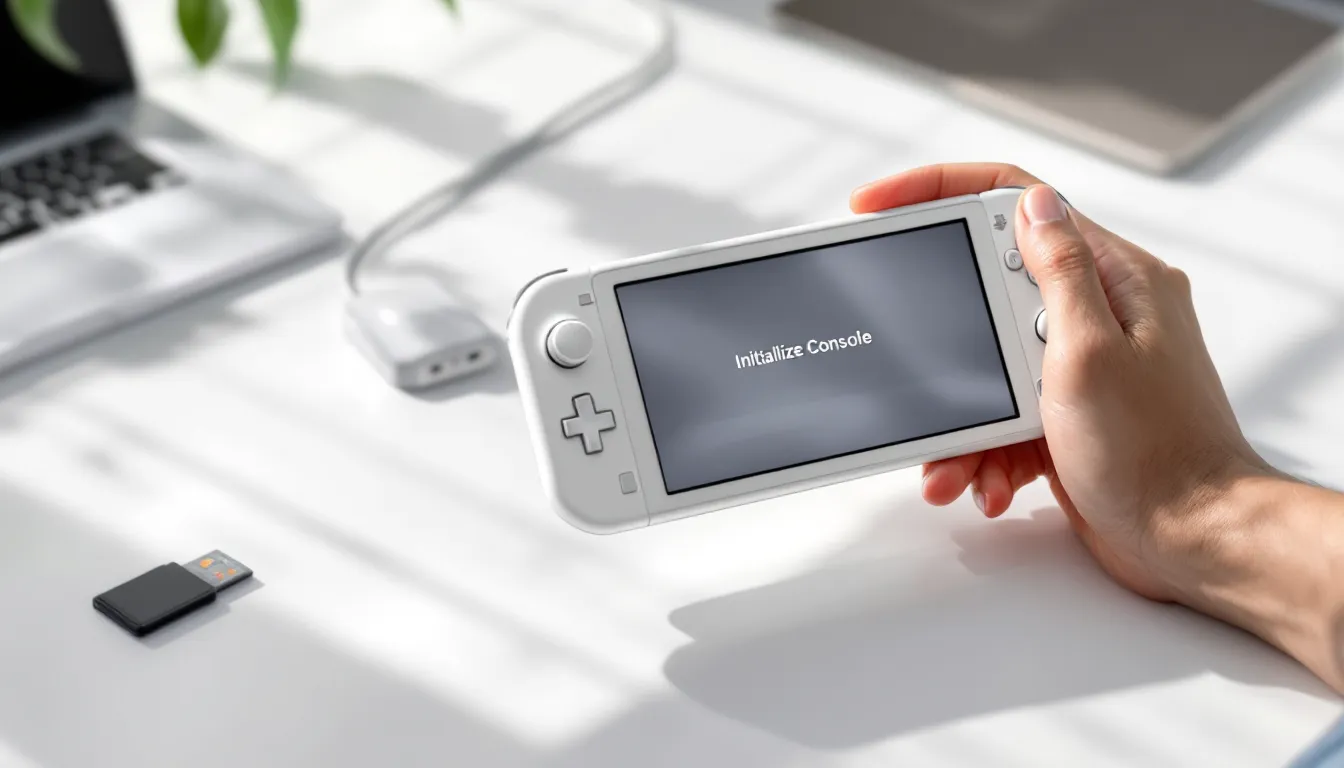
Inside System Settings, scroll down until you find “System.” Select it. Now you’ll see subsections including “Formatting Options,” “Update,” and “Initialize Console.” The “Initialize Console” option is what you’re looking for, that’s the factory reset function.
Press A to select “Initialize Console.” A warning message will appear explaining that this will delete all software, save data, and user accounts. Read it carefully. This is your last confirmation before the point of no return.
If you see a message saying you can’t initialize the console because it’s connected to a network or has accounts linked, make sure no accounts are currently signed in. Sign out of your Nintendo account before attempting the reset. You might also need to disconnect from Wi-Fi temporarily.
Confirming and Starting the Reset
After confirming the warning, you’ll be asked one more time if you’re sure. Select “Yes” to proceed. The console will then ask you to select the user account that initiated the reset. Choose the account you want to use (it doesn’t really matter since they’ll all be deleted anyway), and then the reset begins.
At this point, your Switch Lite is committed. The system will start erasing all data, and you shouldn’t interrupt the process. Don’t close the lid, don’t unplug the device, and don’t do anything that might shut it down during the reset.
The console might restart itself during the process. If it does, just let it happen. This is normal and part of the factory reset sequence.
Wait Times and Completion
A factory reset on a Switch Lite typically takes 5-15 minutes, depending on how much data is stored. The larger your game library and save files, the longer it takes. During the process, you’ll see a progress bar on screen. Don’t get impatient and assume it’s stuck if it’s moving slowly, the reset is working.
Once the progress bar reaches 100%, the console will boot into the initial setup screen, similar to what you’d see if you just unboxed a brand-new Switch Lite. The reset is complete. At this point, you’ll need to go through the initial setup process: connect to Wi-Fi, set your language and region, create a new user account (or use an existing Nintendo account), and configure your console preferences.
The entire process, from start to finish, usually doesn’t exceed 20 minutes. If it takes longer than 30 minutes or the progress bar stops moving, your Switch Lite might be experiencing an issue. Force shut it down (hold Power for 15 seconds) and try again.
Troubleshooting Common Reset Issues
Sometimes the reset process doesn’t go smoothly. Here’s how to handle the most common problems.
Reset Stuck or Not Responding
If your Switch Lite seems stuck during the reset, the progress bar stops moving or the screen goes dark for more than a few minutes, don’t panic immediately. Wait at least 5-10 minutes before assuming something’s wrong. Factory resets can take longer than expected, especially if your console had a lot of data.
If the screen is completely black and nothing changes after 15 minutes, force shut down the device by holding Power for 15 seconds. After the shutdown, wait a minute, then power it back on. The console should either resume the reset or show the error screen.
If resetting continuously fails, the issue might be hardware-related, not software. A failing storage drive or battery issue can prevent a reset from completing. In this case, you might need to contact Nintendo Support for a repair or replacement.
Error Codes During Reset
Sometimes you’ll see an error code instead of a smooth reset. Common ones include:
- Error 2002-3534: Usually a network connectivity issue. Disconnect from Wi-Fi and try again.
- Error 2110-1794: Often indicates a corrupted system file that’s preventing the reset. Force shut down, wait 10 minutes, then try again.
- Error 2001-0123: A hardware issue with storage. This might require professional repair.
For most error codes, the first troubleshooting step is the same: force shut down, wait several minutes, and try the reset again. If the same error returns, try disconnecting from Wi-Fi and ensuring no accounts are logged in before attempting another reset.
If error codes persist, visit the Nintendo Switch support documentation for the specific error code. Some codes indicate hardware failures that can’t be fixed at home.
Console Won’t Boot After Reset
Occasionally, after a reset completes, your Switch Lite won’t power on or gets stuck on the Nintendo logo. First, make sure the device has enough battery. Plug it in and let it charge for at least an hour, even if the screen appears off.
After charging, hold Power for 10 seconds to see if it responds. If the console still won’t boot, perform a force shutdown (hold Power 15 seconds), wait 5 minutes, and try powering on again.
If it’s stuck on the Nintendo Switch logo during startup, wait at least 10 minutes. The initial boot after a reset can take longer than normal. The console is reinstalling system software, so patience is important here.
If after 15-20 minutes the console still won’t boot past the logo, you might be dealing with a hardware failure. Contact Nintendo’s customer support for repair options.
What to Do After Your Reset
Your Switch Lite is now reset and fresh. Here’s the process to get it back to a usable state with your games and accounts restored.
Initial Setup and Configuration
After the reset completes, your Switch Lite boots into the initial setup screen. This is the same process you’d go through with a brand-new console. Set your language, timezone, and region. Create a new user account or link an existing Nintendo Network account.
During this setup, you’ll also connect to your Wi-Fi network. This step is crucial because you’ll need internet access to download games and link your Nintendo account. Choose your network and enter your password.
Once you’ve completed the basic setup, you’re technically done with the reset process. Your console is now a clean slate, ready for you to configure as needed.
Restoring Your Nintendo Account
If you want your digital game library, friend list, and cloud saves back, log in with your Nintendo account. Press the Home button, go to your user profile (top-left corner), and select “User Settings.” Choose “Link a Nintendo Network Account” and enter your email and password.
Once you’re logged in, your Nintendo account is linked to your Switch Lite. If you have an active Nintendo Switch Online subscription, it activates on this device. Games you purchased digitally will appear in your eShop library and can be re-downloaded.
For cloud saves, they sync automatically if the game supports them. If you’ve reset your Switch Lite and logged back in, saved games for titles with cloud backup restore automatically within a few minutes. Check your saves by opening a game, you should see your previous progress waiting.
Note that some games (like Pokémon, Animal Crossing, and Zelda) don’t support cloud saves, so those saves won’t restore. You’ll start fresh in those titles if you didn’t back them up elsewhere.
Reinstalling Games and Content
Your downloaded games are gone after a reset, but you can re-download them from the eShop. Open the eShop app, navigate to “Your Profile,” and select “Redownloadable Software.” You’ll see a list of every game your account has purchased digitally. Select any game and choose “Download” to start re-downloading it.
Re-downloading large games like recent Nintendo titles can take a while depending on your internet speed. Games like Zelda: Tears of the Kingdom (around 16 GB) or Pokémon Scarlet/Violet (8-9 GB) might take 30 minutes to an hour on a standard home internet connection.
If you have game cartridges, simply insert them into your Switch Lite and play. The cartridge-based data isn’t affected by a reset, so physical games work immediately without any re-installation.
For your game library, how to optimize your covers tips for managing storage space and organizing your games efficiently after a reset. If you’re using a microSD card, reinsert it after the reset to restore any games you’d saved on it.
While you’re setting everything up, consider enabling some safety features. Go to System Settings > Parental Controls if you’re setting up the console for a child, or review your account security at your Nintendo account page to enable two-factor authentication and review recent login activity.
One more thing: if you’re familiar with GameFAQs Switch resources for guides and walkthroughs, these are handy for remembering where you left off in games without cloud saves. You won’t have automatic recovery, but community guides help you catch up quickly in story-driven games.
Conclusion
Resetting your Nintendo Switch Lite is a straightforward process when you know the steps, but the real work happens in the planning. Back up what matters, understand what you’ll lose, and then commit to the reset. Whether you’re fixing a sluggish system, preparing for a sale, or starting fresh after an account compromise, the reset process clears out the digital junk and gives your console a real shot at running clean.
The key takeaway: try a soft reset first. Most issues resolve with a simple restart. If that doesn’t work, then go nuclear with the factory reset. And before you hit that final confirmation button, remove your microSD card, back up screenshots if you care about them, and accept that local game saves in unsynced titles are gone.
After the reset, your Switch Lite boots like new, but it’s missing your digital library and linked accounts. Log in with your Nintendo account, re-download your games, and restore your cloud saves. Most of your digital life comes back automatically: the only casualties are local saves in games without cloud support and any data on the internal storage.
Reset with confidence knowing you can get your console back to running like it just came out of the box, and your digital library comes right along with you.